
Next Gen Voice Notes: what they are and what you can do
A voice note is quick to make and quick to forget: a file, a block of text, and then someone still has to do something with it. Next Gen Voice Notes go a step further. The recording becomes a report in the form that fits the conversation, a checklist runs alongside, the actions are listed and the learning points can add to what your organisation knows. The main page gives the overview, and below we explain what sits behind it.
- From a loose voice note to a note that carries through
- Record where you work
- A report that fits the conversation
- A different report per phase, in your own workflow
- Which model does the work: local, remote or European
- A checklist during the conversation and actions afterwards
- Timeline, CrewMate and learning
- Privacy and control for a recording
- Who it is for and how to start
From a loose voice note to a note that carries through
Most people know the voice note as a button on the phone. You talk, you get an audio file or a rough text. That is handy for a shopping list, but it falls short at work: an intake conversation, a coaching talk, a meeting with six people or a reflection after practice.
For a conversation at work you want more than text. You want to know what was decided, who does what and what you learned. And you want that record in a form that fits that kind of conversation: an intake asks different questions than a closing.
A Next Gen Voice Note therefore combines four things: a recording, a transcript, a report you have set up yourself and a follow-up, such as actions and knowledge. The difference with an ordinary voice note or a meeting recorder is covered in Voice note or meeting recorder: which fits you?.
Record where you work
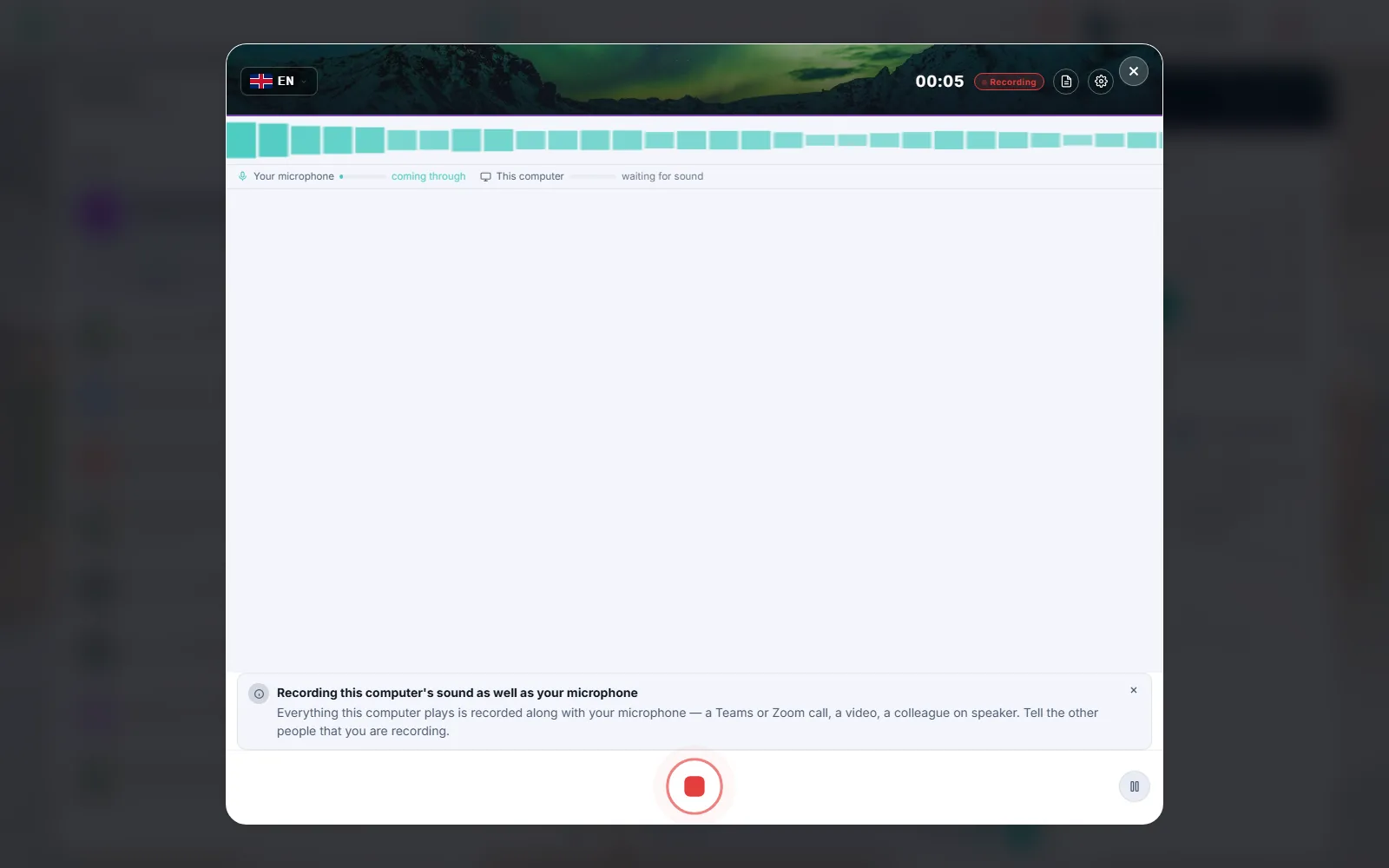
You record in the CoVince browser, on your phone as well. The recorder knows seven languages: English, Dutch, German, French, Spanish, Italian and Portuguese. You can pause and resume, and a recording made without a connection is not lost: it is kept and sent as soon as you are online again.
If you also want to hear the others in a Teams, Zoom or Meet call, you include your computer's sound next to your own microphone. You see two meters, your microphone and this computer. Before it starts you confirm that the others know you are recording. This is not possible on a phone.
If you are in a meeting that is already running, the note taker in the desktop app can write along. The meeting opens next to a live panel. No bot joins the call, so nobody sees an extra participant appear. More in Recording Teams and Zoom calls with computer sound.
A report that fits the conversation
Without settings you get a standard report with summary, insights and actions. If you want more, you compose the report yourself. Each section has a title, an AI instruction and a type. You can choose a text summary, a mind map, action items, questions you can ask the AI, an infographic, a timeline of the conversation with speakers and subjects, and deadlines on a time axis.
A report can build on an earlier section and you can insert data into the instruction. If you have an example of how the report should look, you can let the system learn: you paste an example conversation and the report as it should be, the system proposes changes and nothing changes before you approve.
Every change keeps a version, so you can go back. More on the structure in Report templates for conversations.
A different report per phase, in your own workflow
A conversation seldom consists of a single moment. A trajectory has phases: intake, delivery, closing. Each phase asks for its own report. In the workflow editor you capture that. A workflow consists of steps, a step can hold a recording, and each recording has its own list of report sections.
That means a different phase is a different step with its own recording and its own report. A single recording that switches report halfway does not exist; the phases run through the steps. At a step you can also set a checklist, hints, the AI model and the participation of a CrewMate.
You save workflows as a template, for yourself, for your organisation or publicly. People running the workflow see the steps and the progress, and the step with a recording opens the recorder. Read on in Configurable workflows for conversations and recordings and A different report per phase of the conversation.
Which model does the work: local, remote or European
For every recording two kinds of models are at work: a speech model that turns audio into text and a language model that writes the report. Your organisation decides which.
- Local speech model: in the desktop app a speech model runs on the PC. The audio does not leave your machine and a transcription costs no credits.
- Local AI model: a CrewMate can work with a language model on your own machine, from a catalogue an administrator sets. The note taker's report for a running meeting is still written on the server side for now.
- Remote model: several providers for speech and language, chosen on quality, language and price.
- European options: providers with a European endpoint, which your organisation can switch on, with a setting to not fall back on a non-European model.
The administrator chooses which models are allowed and can set a fallback order. A recording can choose another model for its report, but only within what the organisation allows. More in Local speech models and Model choice per organisation, with a fallback.
A checklist during the conversation and actions afterwards
The recorder has a panel with talking points. You set them in the workflow or add them during the conversation. You can tick them yourself and they are recognised live from words that are said. After you stop, an AI step checks each point against the transcript. The maker can require that all points are covered before the recording stops. What does not exist: an AI that reads every sentence live and ticks points. So it is word recognition live and an AI check afterwards.
Then the actions sit in the report. You can tick them off, assign them and give them a date, and actions without an owner appear in the agenda for everyone in the journey. If you want an agent to do the work, you place an AI agent step after the recording in the workflow. A button right at an action that hands that one action to an agent is in preparation. Read Checklists during a meeting or conversation and Pulling action items out of a recording.
Timeline, CrewMate and learning
The report and the transcript land in the journey's timeline. There you open them, play a line from the moment it was said, name speakers and share the report with a link. You can export to PDF and Word.
A CrewMate reads your recording along. You can ask questions about a recording in the chat and you can add a recording with its report as a knowledge source to a CrewMate. That is a deliberate step by a person, not an automatic knowledge base that fills itself. You see and remove what was added.
For learning the same principle applies. A learner reflects out loud, gets a report and a coach or teacher sees it in the timeline. What that looks like is in Voice notes for learning and development, and at Next Gen Learning you see the learning platform around it. More about the AI teammate is on the CrewMate page.
Privacy and control for a recording
A voice is personal. That is why the privacy panel sits in the recorder itself: who sees it, how long it is kept, how you delete it, who transcribes it and whether it trains AI. CoVince does not train AI on your recordings.
For computer sound you confirm that the others know, and an organisation can require consent on every recording. An organisation can have the audio deleted after a number of days while the transcript and report stay. A deletion goes to the bin first, with undo.
CoVince runs in Europe and is ISO 27001 certified. Where your audio is processed depends on the model your organisation chooses, and with local models it stays on your own PC. This is not legal advice. Read on in GDPR and recording conversations, and on the European alternative page what sovereignty means to us.
Who it is for and how to start
Next Gen Voice Notes fit wherever a conversation has to lead to a report, an agreement or a learning point: healthcare and allied health practices, education and training, government, consultancy and coaching, and field service. A healthcare example is in Voice notes in healthcare.
Start small. Record a conversation, look at the standard report and only then adjust sections. Next set up a workflow for a type of conversation you have often, with a report per phase. Add a checklist if the same points always have to come up.
If you want to see how it works in your situation, book a demo. We set it up together with you for a conversation you really have, with the model that fits you.
Also from CoVince: CrewMate, the AI teammate, Next Gen Learning, the European alternative.
Frequently asked questions
What are Next Gen Voice Notes?
A voice note that carries through: the recording is transcribed, a report is written in the form your organisation has set up, a checklist runs alongside, the actions are listed and everything lands in your journey's timeline.
Which languages can I record in?
The recorder knows seven languages: English, Dutch, German, French, Spanish, Italian and Portuguese. You choose the language in a searchable flag picker.
Can I upload an existing audio file into a voice note?
Not in the recorder itself. You add files in the media library and have them transcribed there. Making a recording works in the browser, on the phone and with computer sound.
Can a conversation get a different report per phase?
Yes. Each step in a workflow can have its own recording and its own report. A single recording that switches report halfway does not exist.
Does my audio stay on my own computer?
With a local speech model in the desktop app it does: the audio does not leave the device and only the text is sent afterwards. With a remote model, audio is processed by the provider your organisation chooses.
What does it cost?
That depends on your use and your model choice. A local transcription costs no credits. In a demo we show what fits you.